2.2. Mailbox & Sending (Inbox & Compose)
This feature lets you exchange email with trade counterparties or stakeholders directly within TFlow. You can attach project documents and send them without opening an external client (Outlook, Gmail).
💬 Try asking Lyra
- "Summarize this email"
- "Find important emails"
- "Open the email compose screen"
For more details: Lyra Interactive Features Guide
⚠️ To send email, you must have completed Email Integration and Settings in advance.
1. Using the Inbox
If you see "Email not found", that mail has been deleted or moved to another folder in the meantime. Click the inbox folder again, or use Sync at the top right to refresh the list, then open it again.
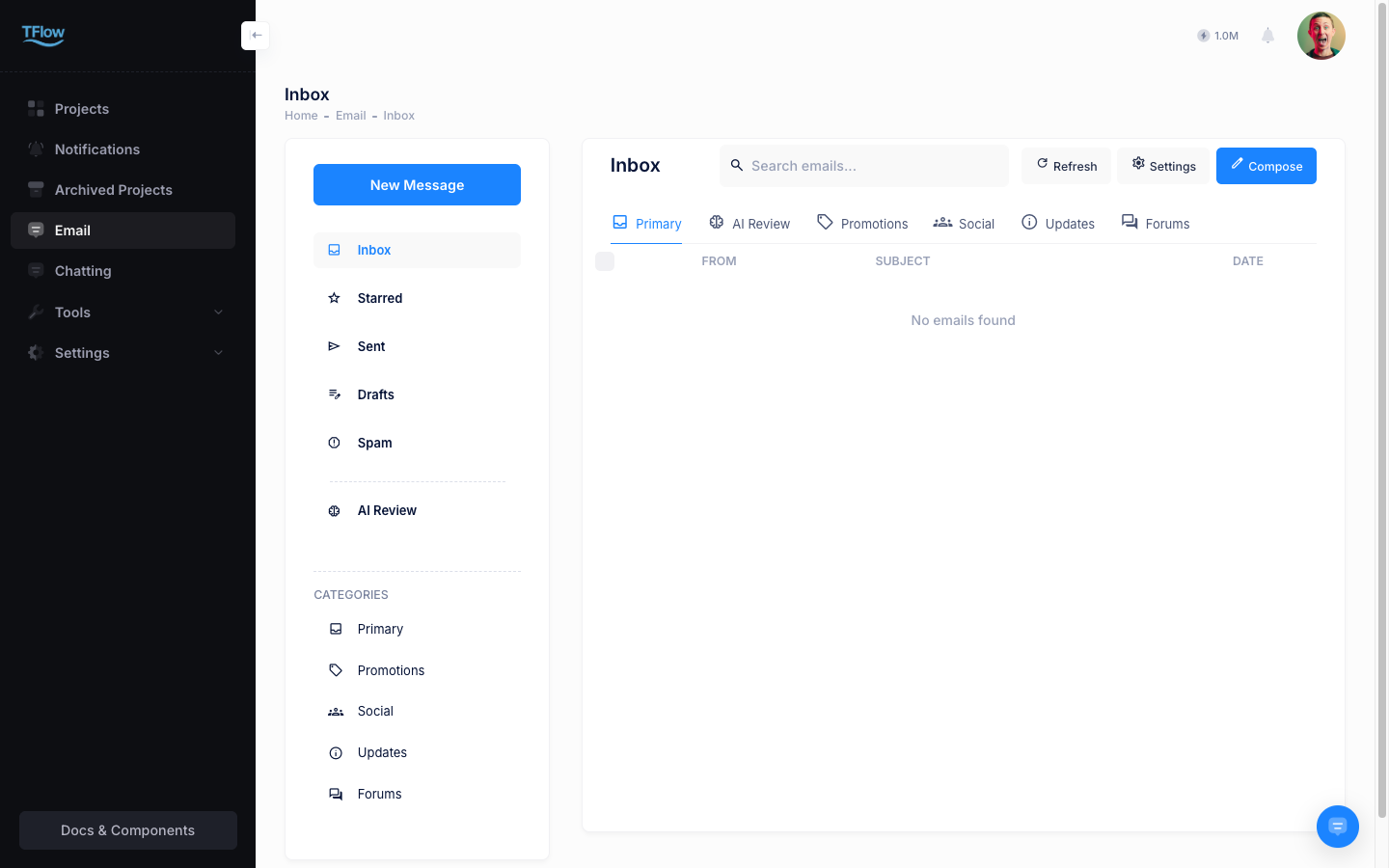
- Folder sidebar: Move between Inbox, Starred, Sent, Drafts, Spam, and AI Review folders, plus categories and connected accounts, from the sidebar. Mail counts are shown per folder. The sidebar stays visible on the detail and compose screens too, so you can jump to any folder from any screen.
- Unread badge: The email menu in the left main sidebar shows the number of unread emails as a badge. When new mail arrives, the number updates in real time.
- View the list: In the left Emails > Inbox menu, review mail received in your connected account.
- Categorize and filter: Filter by Unread, Starred (important), Mapped (linked to a project), and more.
- View details: Click a mail to read the body and identify what the AI should analyze (whether documents are included). Clicking another folder from the detail screen returns you to that folder's list.
2. Sending Mail (Compose / Reply)
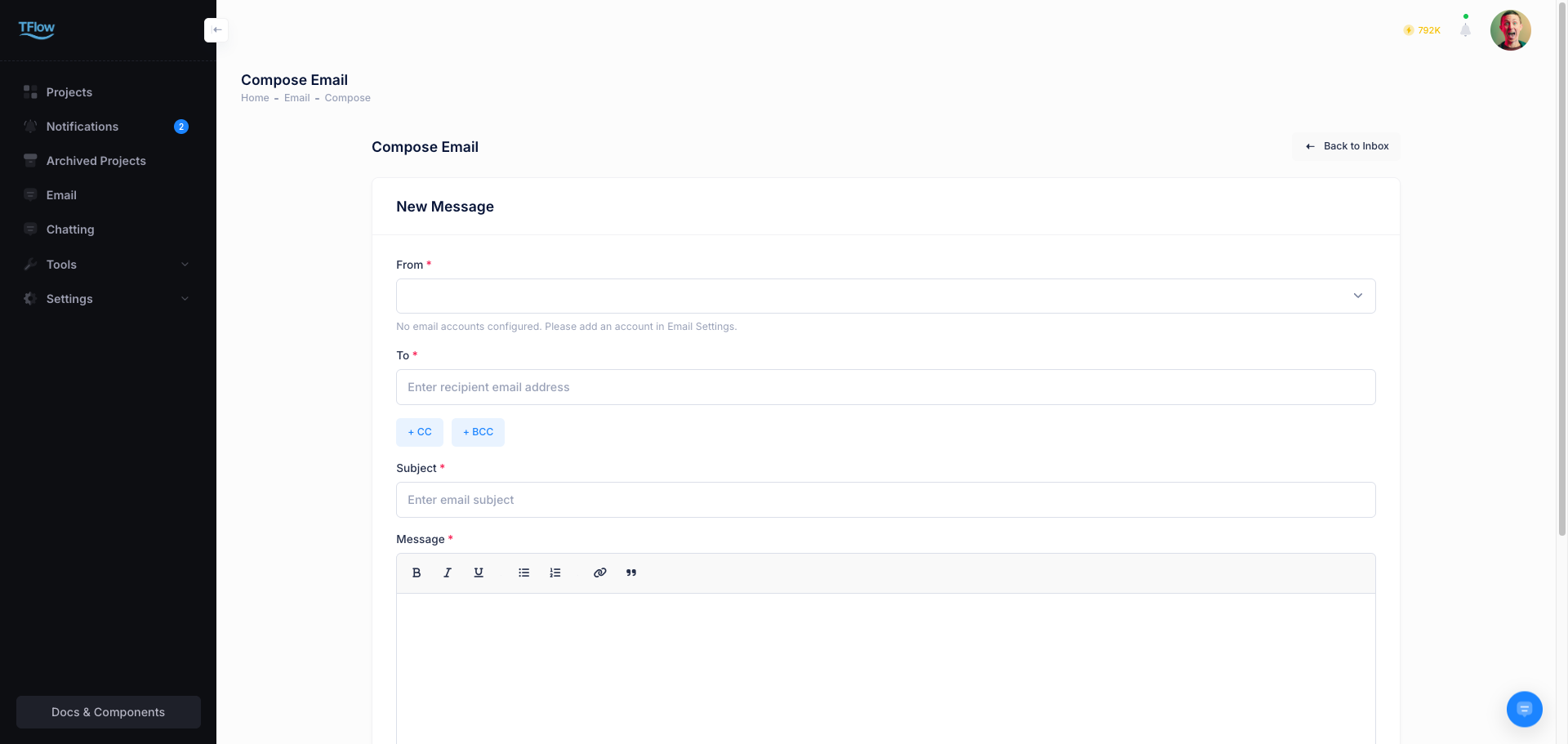
If a message says required fields are missing, one of To, Subject, or the message body is still empty — fill in all three and send again. "Draft not found" means that draft was already sent or deleted, so just write a new one.
- Compose new mail: Click the
Composebutton to open a new window. Enter the recipient (To), CC, and BCC. - Reply/Forward: Use the
ReplyorForwardbutton on an existing mail to respond. - Attach documents: You can easily attach not only files from your computer, but also B/L and P/L files from your TFlow project documents vault, either as a link (URL) or as the actual file.
- Signature: In the settings area, you can create an HTML signature template (including your logo) that is fixed to the bottom of your outgoing mail.
2-1. Sending Troubleshooting (FAQ)
- Q: "Attachment not found."
- A: The file you picked from the project document vault has since been deleted or replaced. In the compose screen, remove that attachment, pick the file again from the vault, and send.
- Q: "A message says email sending failed."
- A: Most likely your mail account settings (outgoing mail server) were entered incorrectly, or the attachment is too large and hit your mail service's limit (usually 20MB). For very large files, put a share link in the body instead.
- Q: "When I reply, the previous mail history gets cut off."
- A: Check whether the include-original (quote) setting is turned off in the compose screen. Turn on 'Include original when replying' in the settings at the bottom of the editor.
- Q: "If I delete an email in the TFlow mailbox, does it also get deleted from my actual Google (Gmail) server?"
- A: For Google (Gmail) integration, it uses full two-way synchronization, so deleting in TFlow also deletes it on the actual Google server. However, note that for users who connected a standard IMAP account, full two-way synchronization (emptying/deleting) is not supported due to the nature of the server communication.
3. Lyra Reply Draft
When replying to a received email, click Lyra reply draft at the top right of the message field. A small panel opens next to the editor; unlike the general Lyra chat, it only helps with this reply.
- Pick a project — Candidates come from the email's project labels, counterparty and order numbers; one project with enough signals is pre-selected. Documents are searched only within the selected project ('No project' uses earlier emails only).
- Review the evidence — Excerpts from the project's documents (quotation, PI, L/C, B/L…) and earlier emails in the thread appear as cards. Only evidence confirmed as shared with the counterparty is ticked by default. Internal items (documents not shared, unsent quotation drafts, internal forwards) and Sharing unknown items are off, and even when ticked their figures and terms are not copied. If the sender is not the counterparty of the project (e.g. a forwarder or a colleague), a warning appears and nothing is pre-selected.
- Request — Click a chip (More polite · Shorter · Key points only · In English · In Korean) or type one line, then click Write draft.
3-1. How the Draft Is Applied
The draft goes straight into the editor and Lyra's changes are highlighted in purple (on screen only — never part of the sent email). If the body already has text, only the sentences that need it are changed; select text first to change just that part. Changes whose position is ambiguous (e.g. the same sentence appears twice) are skipped and counted. The editor is locked for about a second while changes are applied. Undo restores the previous state (if you edited afterwards the button disappears — use the editor's Ctrl+Z).
- Facts missing from the evidence (dates, amounts, numbers) are never invented — Lyra leaves Needs check: …; fill in or remove before sending.
- Instructions inside the received email are treated as data, not commands. Nothing is sent automatically.
- The reply follows the received email's language; use the 'In English' / 'In Korean' chips to switch.
- A draft uses the same tokens as Lyra chat.
3-2. Reply Draft Troubleshooting (FAQ)
- Q: "I don't see the Lyra reply draft button."
- A: It appears only when replying to a received email (not yet for new emails or forwards). If it still doesn't appear, your administrator has not enabled this feature yet.
- Q: "It says no evidence was found."
- A: The selected project has no related documents, or document content search is not enabled yet. Try 'No project', or write the draft from the received email alone.